
I’ve been asked about QR code to print issues a number of times so good indication to just write a post. On a prior QR code post, I outlined a few things you can do with QR codes and Lance in another post talks about tracking with bitly and QR Codes. Now there are a few things you can do to optimize for print since the output is lower resolution out of bitly as example. Getting a good final print QR code is important so your smart phone QR code reader has an easier time translating. Whats the point if the code that does not work or is hard to render for an eager user?
So just to walk through the process, went to this video: https://www.youtube.com/designworldvideo#p/a/f/0/-yshQGg_ycE
Used bit.ly shortener to get this URL: https://bit.ly/emyqKt
Simply put a + next to the bitly url in your web browser and it takes you to page with tracking and QR code for download. You can save the file out to your desktop, and in the case of the bitly method comes out as png file. (this also works with custom short URLs – eg Design World dwo.me)
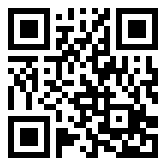
Now this file is 2.3″ x 2.3″ at 72dpi – if you sampled for print @300dpi the file would shrink to .55″ x .55″ – so pretty close, but we found at least .75″ @ 300 dpi works best. We started out at 1.5″ and tested down below .5″, but overall on different devices, paper and various ambient light conditions we rolled with .75″.
In Photoshop or other image editor you can change mode to bitmap and then you can set resolution- set to 300 and then can adjust size to .75″x .75″. This way you ensure its sharp on printing and makes it easier for the phone to read. As an alternate method, you can open the .png file in Illustrator and save the file as .ai or .eps format. You can edit in Illustrator or output direct of course but if you go back to Photoshop with the .ai file you will be prompted to raster the vector format. Here again you can set the color space and resolution for clean results.
And you can also change colors and the QR code will still work, although I have not tested much of the color gamut. But if you are in bitmap mode in Photoshop, just go back to grayscale and then to RGB. I converted same code to green after up sample.

And although this whole post is about creating a sharp QR code on printing, I am really amazed how well they work even when tweaked and distorted. Grab you smart phone with QR reader and give this one a try. It read and rendered as fast as the others here on my iPhone with ScanLife. So there is a fair amount of room for creativity. Designers don’t despair – too much.

And finally, it’s obvious, but the link off these QR codes should be mobile friendly content since users are accessing from a smart phone.